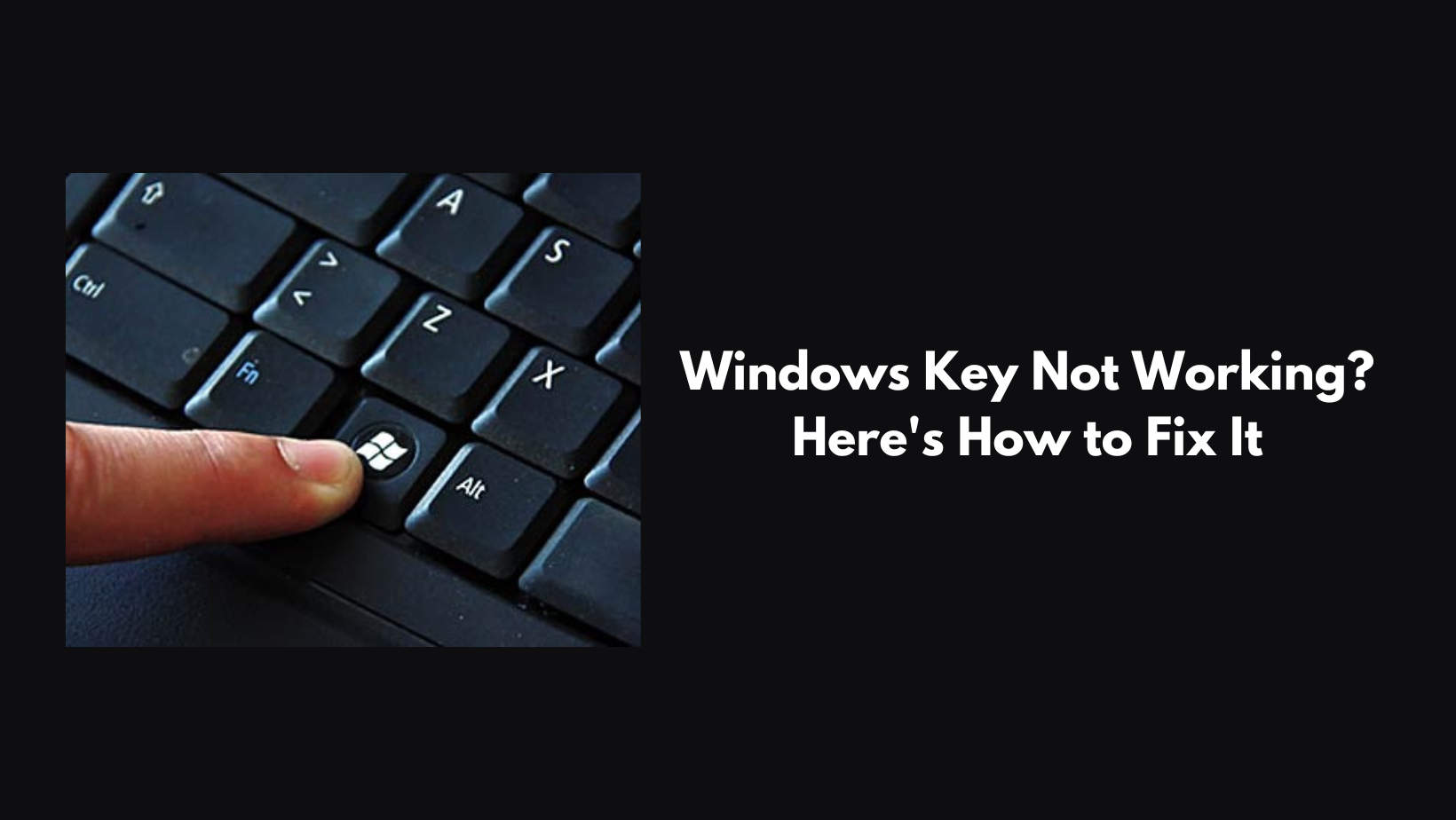
Windows Key Not Working? Here's How to Fix It
-

- by data.recovee,
- January 27, 2026
- in technology,
The Windows key is a very important and essential key on a computer. The key, which carries the Windows symbol, is used for numerous tasks on your computer. From accessing the menu to capturing the screen, there are different reasons what makes this key essential to a Windows user.
This is also the biggest reason why a Windows user is troubled when this key stops working. It is not uncommon for people to see the Windows key not working, and if you are thinking why won’t my Windows key work, then this guide will tell you all about it. The guide will also mention certain effective solutions that you can use to easily resolve this issue on your computer.
What are the main reasons why the Windows key is not working on your device?
The malfunctioning of the Windows key might happen for numerous reasons. According to some specialists, the reason could be a computer setting that is turned off or the presence of malware. Furthermore, certain manufacturers produce keyboards that automatically disable the Windows key when the keyboard is in gaming mode.
In essence, the Windows key could be out of function because of the following:
-
Windows has turned it off
-
Your keyboard has locked it (common in Corsair, Razer, and other gaming keyboards)
-
A malware or virus attack has disabled it
-
An application or service has stopped it
-
Windows 10/11 Game Mode/Xbox Game Bar has muted it
-
Your keyboard is malfunctioning
These are the main reasons that lead to the failure of the Windows key. Beyond that, hardware problems in Windows could be a factor as well. So, let’s keep on going to figure out the solution.
Top Methods to Resolve the Windows Key Issue on your Computer
To resolve the Windows key not working Windows 10, first check for hardware-related issues before going to Windows 10 settings and software.
-
Restart your computer
It might seem trivial, but often most keyboard-related problems are fixed with a restart. It clears settings and stops any apps that might be causing a conflict with the Windows key. This is a fast way to check if the Windows key is locked or if the entire computer is locked.
-
Troubleshoot your Start menu
If the Windows key brings up keyboard shortcuts, though not the Start menu, then the problem is likely with the Start menu and not the key.
-
Disable Filter Keys
This Windows 10 feature blocks double key presses, and it is characterized by one bug that causes keyboards to misbehave. You can deactivate it by pressing the right Shift key for 8 seconds and choosing "Disable this keyboard shortcut in Ease of Access keyboard settings." Confirm that the "Use Filter Keys" toggle is set to Off. If it is on, it could be the reason the Windows key is not working. If Use Filter Keys was already turned off, it means it isn't the cause of the problem.
These are only a few methods that you can try when the key is not working. You can use the website Datarecovee to explore more solutions that you can use.
0 Comments:
Leave a Reply