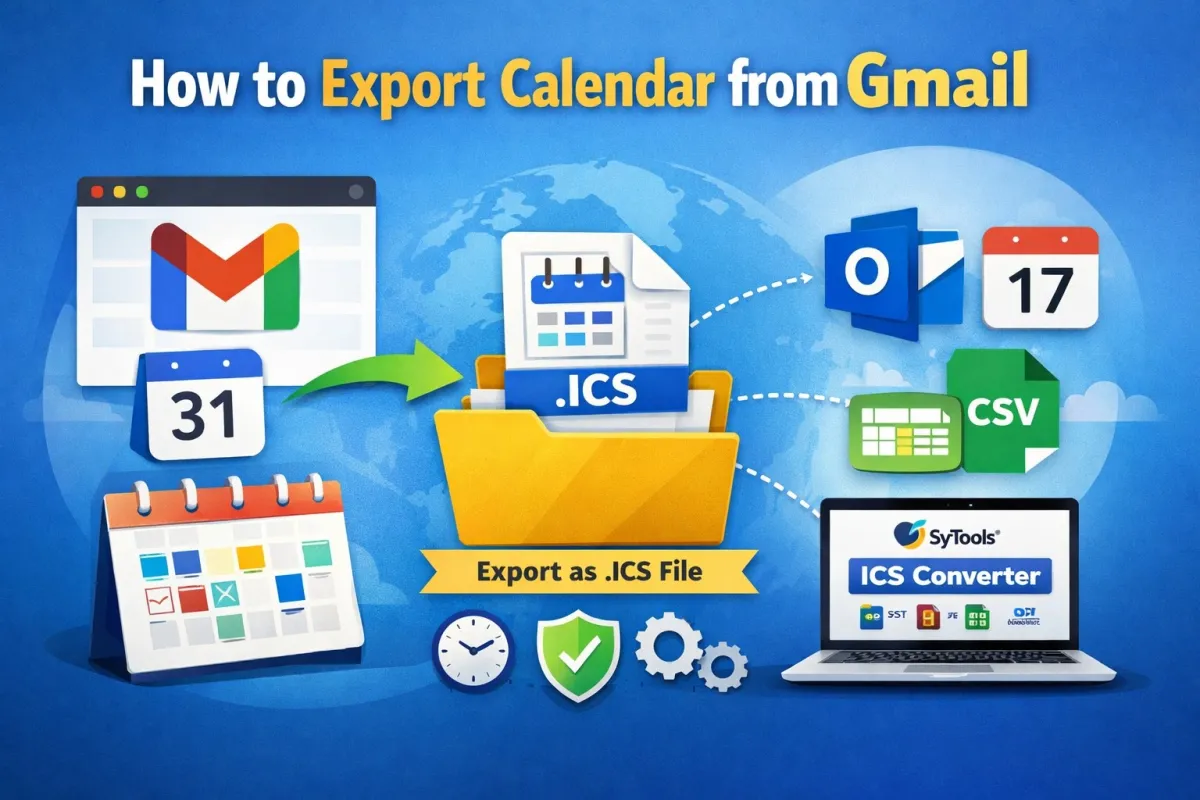
How to Export Calendar from Gmail? Complete Guide
-

- by mishtibakshi,
- February 04, 2026
- in technology,
Managing schedules efficiently often requires backing up or sharing calendar data. Many users rely on Gmail and Google Calendar for organizing meetings, reminders, and events. However, there are situations where exporting calendar data becomes necessary—such as migrating to another email service, creating backups, or sharing schedules with colleagues. This guide explains how to export calendar from Gmail using multiple reliable methods, from manual Google Calendar options to professional automated tools.
Understanding the correct approach ensures data accuracy, prevents event loss, and saves time during migration or archiving.
Read more: if you want to import iCalendar file to Google calendar than you can also use the expert method mentioned below.
Why Do Users Need to Migrate Calendar from Gmail?
Before learning how to export a calendar from Google email, it is important to understand the common reasons behind this requirement:
-
Creating a backup of important events
-
Migrating from Google Calendar to Outlook, Apple Calendar, or other platforms
-
Sharing calendar data with teams or clients
-
Archiving old events for compliance or documentation
-
Printing or converting calendar data into other formats
Google Calendar stores data in ICS (iCalendar) format, which is widely supported. Exporting this data allows flexibility across platforms.
Method 1: Export Calendar from the Gmail Using Google Calendar
The most straightforward way to migrate calendars data is directly through Google Calendar. This method is free and suitable for users with limited calendar data. The steps are:
-
Sign in to your Gmail account using a web browser
-
Click on the Google Apps (nine-dot icon) and select Calendar
-
In Google Calendar, click the Settings (gear icon)
-
Select Settings from the dropdown menu
-
Navigate to Import & Export from the left panel
-
Click on Export
-
Google Calendar downloads a ZIP file containing ICS files
This process demonstrates how to transfer a calendar from Gmail in its simplest form.
Limitations of This Method
-
Exports all calendars together
-
No option to filter by date or event type
-
Requires manual extraction of ZIP files
-
Not ideal for large or enterprise-level data
Method 2: How to Export Calendar from Google mail for a Single Calendar Only
If you only need to export one specific calendar instead of all calendars, Google Calendar provides a more targeted approach. An ICS file will be downloaded instantly. This method is useful when learning how to migrate the calendar from Gmail for selective data transfer.
-
Open Google Calendar
-
Locate My Calendars on the left side
-
Hover over the calendar you want to export
-
Click the three-dot menu
-
Select Settings and sharing
-
Scroll down and click Export calendars option.
Drawbacks
-
Still exports only in ICS format
-
No preview of events before export
-
Manual handling required for multiple calendars
Method 3: Export iCalendar file from Gmail Using Google Takeout
Google Takeout is another official method that allows users to download data from multiple Google services, including Calendar. The steps using Google Takeout
-
Visit Google Takeout
-
Sign in with your Gmail credentials
-
Click Deselect all
-
Scroll down and select Calendar
-
Click Next step
-
Choose file format, size, and delivery method
-
Click Create export
Google will prepare the archive and notify you via email.
This approach also explains how to transfer calendar from Gmail while downloading other Google data if required.
Disadvantages
-
Processing time can be long
-
Limited control over event selection
-
Not suitable for frequent exports
Common Issues Faced While Exporting Gmail Calendar Data
Even though Google provides multiple options, users often face challenges when attempting how you need to shift calendars from Gmail, such as:
-
Incomplete event exports
-
Duplicate calendar entries after import
-
Compatibility issues with non-Google platforms
-
Difficulty converting ICS files into readable formats like PDF or CSV
These challenges highlight the need for a more advanced and automated solution.
Automated Solution to Migrate Calendar in Gmail
For users dealing with large calendars, multiple accounts, or complex migrations, an automated solution is far more effective. The SysTools ICS Converter Tool is designed to handle such scenarios efficiently.
Why Choose the ICS Converter?
-
Converts ICS files into multiple formats (PST, PDF, CSV, MSG, etc.)
-
Maintains event integrity, time zones, and attachments
-
Supports bulk conversion
-
Compatible with Google Calendar exports
-
User-friendly interface for non-technical users
Once you understand how to export calendars from Gmail manually, this tool helps process and convert the exported ICS files seamlessly.
Working Steps to this Tool
-
Export the calendar in Gmail using any method above
-
Add exported ICS files
-
Preview calendar events
-
Choose the desired output format
-
Select destination location
-
Start the conversion process
This automated approach eliminates the limitations of manual methods and ensures complete data accuracy.
Best Practices Before Exporting Calendar through Gmail
Before applying any method on how to transfer calendar to Gmail, follow these best practices:
-
Remove duplicate or outdated events
-
Verify correct time zone settings
-
Ensure stable internet connectivity
-
Backup original data before conversion
-
Use automated tools for professional or business data
Final Thoughts
Learning how to transfer calendars from Gmail is essential for users who want flexibility, data security, and cross-platform compatibility. While Google Calendar provides basic export options, these methods often fall short for advanced requirements. Manual techniques are suitable for occasional use, but they lack customization and scalability.
For users handling multiple calendars, large event volumes, or format conversions, the above converter Tool offers a reliable and efficient solution. Combining Gmail’s native export feature with a professional converter ensures smooth data management without risking data loss.
0 Comments:
Leave a Reply